
How to Find Emails from LinkedIn Profiles Safely
Compliance-safe guide to finding emails from LinkedIn profiles. Compares extensions, manual methods, and URL-based enrichment APIs.
Jesse Ouellette
February 16, 2026
Every SDR has been there. You find the perfect prospect on LinkedIn. Right title, right company, right geography. You click through to their profile, scroll down to "Contact info"—and it's empty. No email. Just a "Connect" button and a hope that they'll accept.
LinkedIn has over a billion members, but for most of them, you can't see their email address unless you're already connected. That's by design. LinkedIn makes money by keeping the social graph gated behind Sales Navigator subscriptions and InMail credits. If you could just export emails from profiles, LinkedIn's entire monetization model would collapse.
So sales teams improvise. They install browser extensions, try manual workarounds, run Google dorks, and sign up for data tools. Some of these methods work well. Others will get your LinkedIn account restricted—or worse, put your company on the wrong side of data privacy regulations.
I've spent years building LeadMagic's enrichment products and talking to thousands of sales teams about how they source contact data. This guide is the honest version of what works, what doesn't, and what you should never do—regardless of which tool you end up choosing.
Disclaimer: LeadMagic is not affiliated with, endorsed by, or sponsored by LinkedIn or Microsoft. LinkedIn is a registered trademark of LinkedIn Corporation. All references to LinkedIn in this article are descriptive and editorial in nature.
The Compliance Problem Nobody Talks About
Before we get into tactics, we need to talk about the elephant in the room: compliance. Most "how to find emails on LinkedIn" guides skip this entirely, which is irresponsible—because the risks are real and getting worse.
LinkedIn's Terms of Service
LinkedIn's User Agreement is explicit. Section 8.2 prohibits scraping, crawling, or otherwise collecting data from the platform through automated means. This isn't buried in fine print. LinkedIn actively enforces it. They've sued companies like hiQ Labs (a case that went to the US Supreme Court and back), sent cease-and-desist letters to dozens of data vendors, and built increasingly sophisticated detection systems for automation tools.
What does enforcement look like in practice? LinkedIn restricts accounts, permanently bans repeat offenders, and in severe cases pursues legal action. In 2023 and 2024 alone, LinkedIn restricted millions of accounts that exhibited automation patterns. If you're using a tool that scrapes LinkedIn—even indirectly—your account is at risk.
The nuance matters here. There's a legal difference between scraping LinkedIn's platform and using a LinkedIn URL as an input to look up data from other sources. The first violates their ToS and potentially the Computer Fraud and Abuse Act (CFAA). The second is what enrichment APIs do, and it doesn't involve accessing LinkedIn's systems at all.
GDPR and Data Privacy
If any of your prospects are based in Europe (or the UK, or increasingly anywhere with modern privacy law), you need a lawful basis for processing their personal data—including their email address. The two viable bases for B2B prospecting are consent (they opted in) and legitimate interest (you have a genuine business reason to contact them, and it doesn't override their privacy rights).
Scraping emails from LinkedIn profiles doesn't give you either. You didn't get consent, and the "legitimate interest" argument weakens significantly when you acquired the data through a method that violates the platform's terms. European data protection authorities have taken notice. The Italian DPA fined Clearview AI €20 million for scraping publicly available data. The French CNIL has issued guidance specifically about web scraping and data protection that applies directly to LinkedIn data collection.
If you want a deeper dive on staying compliant while running outbound, I wrote a full guide on GDPR-compliant B2B prospecting.
Real Consequences
This isn't theoretical. Here's what I've seen happen to companies that cut corners:
- Account restrictions: Teams running browser extensions that make too many API calls get their LinkedIn accounts flagged. LinkedIn puts them in "commercial use" mode, which limits search results and profile views to a handful per day. For an SDR, that's a career-ending limitation.
- Extension shutdowns: LinkedIn has forced multiple Chrome extensions to change their data collection methods or face removal. Extensions that were reliable six months ago may stop working tomorrow.
- Domain reputation damage: Teams that scrape and email unverified addresses see bounce rates spike. That destroys sender reputation, which affects your entire team's deliverability—not just the offending sender. I covered exactly how this works in our cold email deliverability guide.
- Legal exposure: Companies processing EU citizen data without a lawful basis face fines of up to 4% of annual revenue under GDPR. Even the investigation process is expensive and distracting.
The bottom line: how you source the email matters just as much as whether the email is accurate.
Three Approaches to Finding Emails from LinkedIn
With compliance context in mind, let's look at the three main approaches people use. I'll be honest about each one—including the method we sell.
Approach 1: Browser Extensions
How they work: You install a Chrome or Firefox extension. When you visit a LinkedIn profile, the extension surfaces the person's email address (and sometimes phone number) in a sidebar overlay.
Popular tools in this category include Wiza, ContactOut, Lusha, and Kaspr. They typically source data from a mix of their own databases, public records, and—in some cases—data scraped or crowdsourced from LinkedIn itself.
Accuracy: Varies widely. The better extensions (ContactOut, Wiza) land in the 85-90% range for email accuracy. Others are worse. The fundamental problem is that these tools often rely on cached data—the email they show you might have been accurate six months ago when someone contributed it, but people change jobs constantly. In B2B, roughly 30% of email addresses go stale every year.
Compliance risk: Medium to High. This is where it gets nuanced. The extension itself isn't scraping LinkedIn if it's just matching the profile against an external database. But some extensions do read data from the LinkedIn page (name, company, title) and use that as input for their lookup—which LinkedIn considers a ToS violation. LinkedIn has specifically targeted several email finder extensions over the years, and their detection has gotten better.
If LinkedIn detects the extension, the consequences hit your account, not the extension vendor's. They keep selling; you lose access.
Cost: Most charge $30-100/month per seat, with limited credits. ContactOut starts at $79/month. Lusha uses per-seat pricing. Wiza charges per email exported. Credits typically reset monthly—use them or lose them.
When it makes sense: For individual reps doing low-volume, one-at-a-time prospecting where they accept the risk of LinkedIn detection. Not suitable for teams doing volume or anyone who can't afford to lose their LinkedIn account.
Approach 2: Manual Methods
These are the scrappy, no-cost approaches that anyone can try. They're slower, but they carry the lowest compliance risk because you're not automating anything.
Check LinkedIn Contact Info: The simplest path. Go to the person's profile, click "Contact info" (the section below their headline). If they've chosen to display their email, it's right there. The catch: most people don't. In my experience, maybe 15-20% of LinkedIn users have a visible email address, and it's often a personal Gmail, not their work email.
Ask for a connection first: Connect with the prospect. If they accept, their contact info section often shows more details, including email. The downside: connection request acceptance rates hover around 20-30% for cold outreach, so you're playing a numbers game with a multi-day delay.
Google dorking: Use advanced search operators to find email addresses indexed elsewhere on the web. Try queries like:
"Jane Smith" "Company Name" emailsite:company.com "Jane Smith""Jane Smith" @company.com
This works surprisingly well for executives who speak at conferences, publish blog posts, or appear in press releases. It's hit-or-miss for everyone else.
Company career and team pages: Some companies list their team members with email addresses on their website. Check /about, /team, or /contact pages. Even if the specific person isn't listed, you can often reverse-engineer the email format (firstname@company.com vs firstname.lastname@company.com) and validate it.
Accuracy: Highly variable. When you find a real email through manual methods, it's often current. But the hit rate is low—you might find emails for 10-20% of the profiles you research.
Compliance risk: Low. You're not automating anything, not violating LinkedIn's ToS (you're using the platform as intended), and not scraping data. The email addresses you find through Google are publicly indexed. The connection-then-view-info approach is explicitly supported by LinkedIn.
Cost: Free, except for your time. And time is expensive.
When it makes sense: For high-value accounts where you need a specific person's email and you're willing to spend 5-15 minutes researching. Not viable for list building or any workflow that needs more than a handful of emails per day.
Approach 3: URL-Based Enrichment APIs
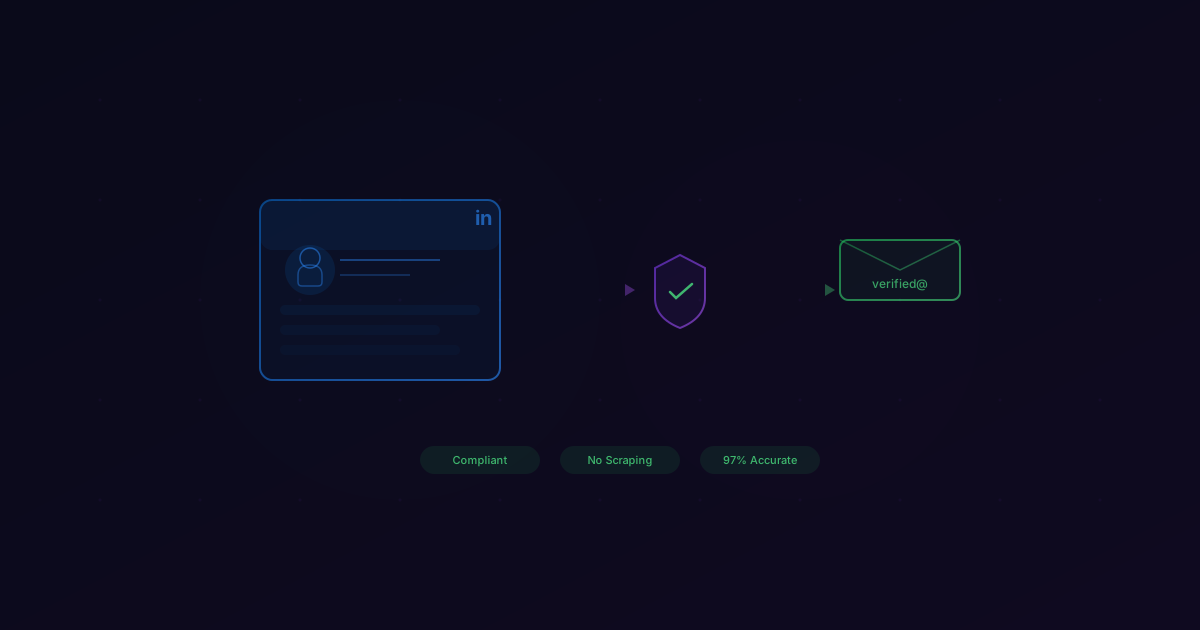
How they work: Instead of installing a browser extension or manually searching, you take the LinkedIn profile URL (e.g., linkedin.com/in/jesseouellette) and pass it to an enrichment API. The API uses that URL as a lookup key to match the person against its own data sources—public records, business registrations, email pattern databases, and other compliant data providers. It returns a valid email address without ever accessing LinkedIn's platform.
This is what LeadMagic's Profile Search does. You give us a LinkedIn URL, we return a valid work email. We don't install anything on LinkedIn. We don't scrape. We don't read data from their pages. The URL is just an identifier—like searching someone's name, but more precise.
Accuracy: This approach tends to have the highest accuracy because the enrichment provider can run real-time verification before returning the result. At LeadMagic, we run our 5-layer validation (MX check, SMTP verification, catch-all resolution, deliverability scoring, and format validation) before we charge you for the result. Unlike tools that return an ambiguous "catch-all" status, LeadMagic resolves catch-all emails to a definitive "valid" or "not found"—giving you a near-zero bounce rate. If we can't verify the email, we don't return it and we don't charge you.
Compliance risk: Low. The critical distinction is that URL-based enrichment doesn't involve accessing LinkedIn's systems. You're not scraping their site, you're not using their API without authorization, and you're not violating their ToS. The LinkedIn URL is used the same way you'd use a person's name—as a matching key against independent data sources. From a GDPR perspective, the data comes from compliant sources with legitimate interest as the legal basis.
Cost: LeadMagic uses credit-based plans starting at $59.99/mo (2,500 credits), with per-credit costs as low as $0.008 on higher tiers. No per-seat fees, no annual lock-in, and credits roll over on Essential+ plans. You only pay when we return a valid result. For teams doing moderate volume, enrichment costs a fraction of $300-800/month extension-based tools.
When it makes sense: For teams of any size that need accurate, compliant email data from LinkedIn profiles—whether it's one lookup or ten thousand. Especially strong for workflows where you already have a list of LinkedIn URLs (from Sales Navigator exports, event attendee lists, or web research).
Step-by-Step: Finding Emails from LinkedIn URLs with LeadMagic
Here's the practical walkthrough for using LeadMagic's Profile Search to go from a LinkedIn URL to a valid work email.
Step 1: Get the LinkedIn URL
Copy the profile URL from LinkedIn. It looks like https://www.linkedin.com/in/username. You can grab this from Sales Navigator, regular LinkedIn search, or anywhere the profile is linked. The URL format doesn't need to be exact—LeadMagic normalizes variations automatically.
Step 2: Paste the URL into Profile Search
Log into LeadMagic and navigate to Profile Search. Paste the LinkedIn URL into the search field and hit "Enrich."
Step 3: Review the results
LeadMagic returns the person's valid work email, along with additional enrichment data: full name, current job title, company, company domain, and confidence score. Every email is run through our validation pipeline before it's returned. If we can't verify the email to a high confidence level, we don't return it—and we don't charge you.
Step 4: Use the email
Export the result or push it directly into your workflow. LeadMagic integrates with Clay, HubSpot, Salesforce, and any tool that supports webhooks or our REST API.
That's it. No browser extension to install. No LinkedIn account at risk. No annual lock-in burning money during slow months.
If you want the email finder without a LinkedIn URL—say you just have a name and company—that's what our Email Finder does. Same validation pipeline, different input.
Bulk Workflow: CSV of LinkedIn URLs
One-at-a-time lookups are fine for targeted outreach. But most sales teams work with lists. Maybe you exported 500 profiles from Sales Navigator, or you have a spreadsheet of attendees from a conference, or your marketing team handed you a list of website visitors matched to LinkedIn profiles.
Here's how to go from a CSV of LinkedIn URLs to enriched, valid contact data using LeadMagic's CSV Enrichment.
Step 1: Prepare your CSV
Create a CSV file with a column containing LinkedIn profile URLs. You can include other columns too (name, company, etc.)—LeadMagic will preserve them and append the enrichment data. A minimal CSV looks like:
linkedin_url
https://www.linkedin.com/in/person-one
https://www.linkedin.com/in/person-two
https://www.linkedin.com/in/person-three
Step 2: Upload to LeadMagic
Go to the CSV Enrichment section in LeadMagic. Upload your file and map the LinkedIn URL column. Select which enrichment fields you want: email, phone, company data, job title, etc.
Step 3: Run the enrichment
LeadMagic processes each row, running every email through the full validation pipeline. You'll see real-time progress as results come in. Typical processing speed is a few hundred profiles per minute.
Step 4: Download your enriched CSV
When processing is complete, download the enriched file. It contains your original data plus all the enrichment fields you selected. Every email returned has been validated through our 5-layer pipeline.
Pricing: You only pay for rows where we successfully return data. If we can't find or verify an email for a given LinkedIn URL, that row is free. With per-credit costs as low as $0.008 on higher-tier plans, bulk CSV enrichment is extremely cost-efficient at scale.
For teams that want to automate this—feeding LinkedIn URLs from a CRM or workflow tool in real time—our API enrichment handles the same lookup programmatically. Same data, same validation, same pay-per-result pricing.
What NOT to Do
I've talked about what works. Now let me be direct about what doesn't—and what can actively damage your business.
Don't scrape LinkedIn
Whether it's a homegrown Python script, a commercial scraping tool, or a "LinkedIn automation" platform that harvests data, scraping violates LinkedIn's ToS and carries genuine legal risk. LinkedIn has won significant legal battles against scrapers, and their detection is sophisticated enough to catch most automation patterns within days. The temporary data you extract isn't worth the permanent account restrictions.
Don't use fake LinkedIn accounts
Some teams create fake profiles to expand their connection network and access more contact data. LinkedIn's identity verification systems have improved dramatically. Fake accounts get flagged faster than ever, and when they're linked back to your company (through IP address, device fingerprint, or company email domain), the consequences extend to your real accounts.
Don't buy LinkedIn data from unvetted vendors
The "buy 10,000 LinkedIn contacts for $50" offers you see online are almost always scraped data that was collected in violation of LinkedIn's terms and often in violation of GDPR. The data is usually months old, unverified, and riddled with bouncing emails. Using it doesn't just waste money—it destroys your sender reputation.
Don't automate connection requests at scale
Automation tools that send hundreds of connection requests per day trigger LinkedIn's rate limits. Even if you avoid an outright ban, LinkedIn will throttle your account—limiting your weekly connection requests to as few as 10-20, which cripples even manual prospecting. The tools that promise "safe" automation limits are playing a cat-and-mouse game with LinkedIn's detection, and LinkedIn has far more resources to invest in detection than any automation vendor has in evasion.
Don't ignore bounce data
Whatever method you use to find emails, verify before you send. Every bounce damages your domain reputation. If you're using a tool that doesn't include verification, pair it with a dedicated email validation service. A 2-3% bounce rate is healthy. Anything above 5% is actively damaging your deliverability. Above 10% and you're in crisis territory—I've seen teams land on major blocklists after a single campaign with bad data.
FAQ
Is it legal to find email addresses from LinkedIn profiles?
It depends on the method. Viewing someone's publicly displayed contact info on LinkedIn is perfectly legal. Using a LinkedIn URL as a lookup key in an enrichment API (like LeadMagic) is also legal—you're not accessing LinkedIn's systems or violating their ToS. Scraping LinkedIn to extract email addresses, however, violates their terms of service and may violate data protection laws depending on your jurisdiction. If you're targeting EU-based prospects, ensure you have a lawful basis (typically legitimate interest) regardless of how you source the email.
Will using an email finder extension get my LinkedIn account banned?
It's a real risk. LinkedIn has become increasingly aggressive about detecting browser extensions that interact with their platform. While "banned" is less common than "restricted," a restricted account has severely limited search and profile viewing capabilities—which effectively ends your ability to prospect on LinkedIn. The risk increases with usage volume. Extensions that are popular enough to appear on LinkedIn's radar tend to trigger more scrutiny.
How is using a LinkedIn URL in an enrichment API different from scraping?
Scraping means automatically extracting data from LinkedIn's web pages—reading the HTML, parsing out names, titles, emails, and other information. This requires accessing LinkedIn's servers, which their ToS prohibits. An enrichment API takes a URL as a lookup key and matches it against independent, external data sources. It never loads the LinkedIn page, never accesses LinkedIn's servers, and never extracts data from their platform. The distinction is both technical and legal: scraping accesses LinkedIn's systems, enrichment does not.
What's a good match rate to expect when enriching LinkedIn URLs?
For professional LinkedIn profiles with a clear current employer, you should expect match rates of 70-85% for valid work emails. The rate drops for profiles where the person recently changed jobs, works at a very small company, or hasn't updated their profile. At LeadMagic, we only charge when we return a valid result, so a lower match rate doesn't mean wasted spend—it means we couldn't verify an email to our confidence threshold, so we didn't charge you.
How accurate are the emails returned by enrichment APIs compared to extensions?
Enrichment APIs that include real-time verification (like LeadMagic) consistently outperform browser extensions on deliverability accuracy. Our testing shows 97% deliverability accuracy for LeadMagic's Email Finder, compared to 85-90% for the better extensions. The difference comes down to verification depth: extensions typically cache data and do minimal validation at the point of delivery, while API-based tools can run 5-layer validation in real time before returning a result. That 7-12 percentage point gap translates to significantly fewer bounces and better domain reputation at scale.
Finding emails from LinkedIn profiles isn't hard. Finding them compliantly and accurately is the challenge. Browser extensions trade convenience for risk. Manual methods trade speed for safety. URL-based enrichment APIs give you accuracy and compliance without the trade-offs—which is why we built LeadMagic's Profile Search to work that way.
If you want to test it, sign up for LeadMagic and run a few LinkedIn URLs through Profile Search. No annual contracts, credits roll over on Essential+ plans, and you only pay for valid results.
Related Posts
Compare the top email finder tools for B2B sales in 2026. Honest reviews of accuracy, pricing, and features to help you choose the right tool for your team.
The complete guide to finding valid email addresses in bulk. CSV upload, API batch processing, and the real numbers on what it costs at scale.
Email finders discover email addresses. Email verifiers check if they're real. Here's when you need each — and why the best tools combine both.