
CLI vs API vs MCP: Which LeadMagic Interface Is Right?
Three interfaces, one platform, same credits. Here's when to use the REST API, when the CLI is faster, and when MCP inside your AI assistant is the right call.
Patrick Spielmann
February 27, 2026
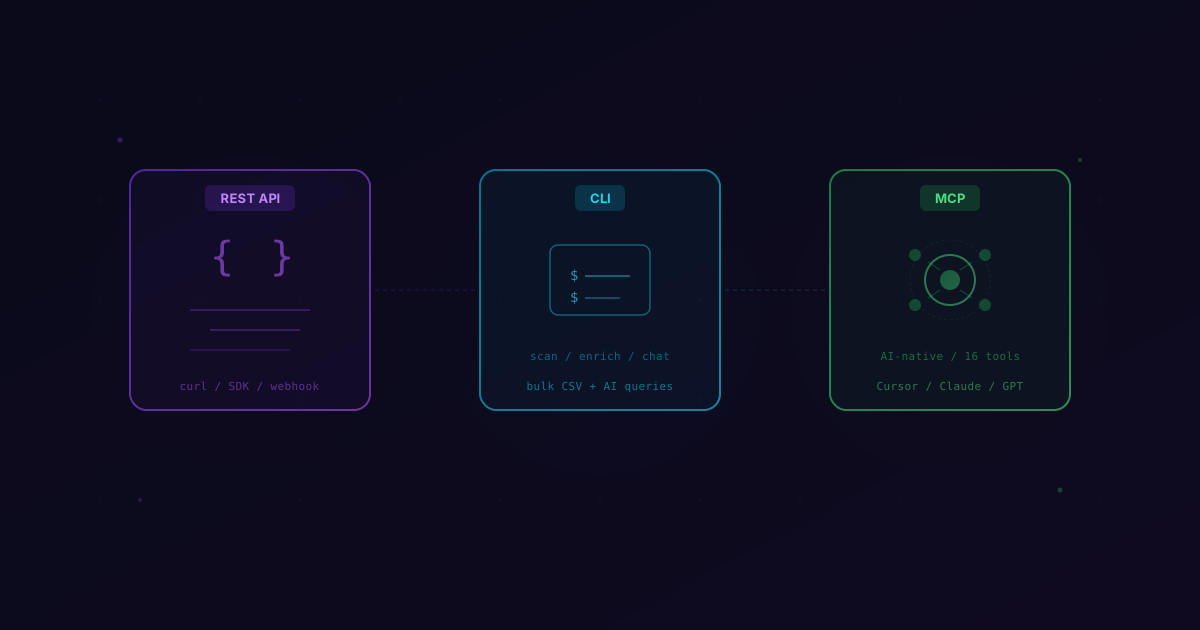
LeadMagic now has three ways to access the same enrichment engine: a REST API, a command-line tool, and an MCP server that lives inside your AI assistant. All three use the same API key, draw from the same credit balance, and return the same data.
The question is not which one is "best" — it is which one fits how you actually work.
The REST API: Build It Into Your Product
The API has been around the longest and remains the right choice when enrichment needs to happen programmatically inside another system.
Best for:
- Product integrations where enrichment runs inside your own SaaS
- CRM webhooks that trigger on new lead creation
- Automated pipelines (Zapier, Make, n8n, custom code)
- Any workflow where a machine makes the request, not a human
How it works: Send a POST request with a JSON body, get structured data back. Standard REST — authenticate with an X-API-Key header, handle responses with your existing HTTP client.
curl -X POST https://api.leadmagic.io/email-finder \
  -H 'X-API-Key: your_key' \
  -H 'Content-Type: application/json' \
  -d '{"first_name": "Jane", "last_name": "Smith", "company_domain": "acme.com"}'
Who uses it: Backend engineers building enrichment into a product. SaaS companies adding data quality features. RevOps teams wiring enrichment into their CRM with middleware. Integration platforms like Clay, Zapier, and Salesforce connecting via the API.
Trade-off: You need to write code (or configure a no-code tool) to use it. There is no interactive exploration — you define exactly what you want, send the request, and process the response.
The CLI: Enrichment From Your Terminal
The CLI is for when you want to work with data interactively but do not want to leave your terminal.
Best for:
- Bulk CSV enrichment (drop a file, pick a column, run)
- Terminal-native workflows and scripting
- AI-powered data querying in plain English
- CI/CD pipelines and cron jobs
- SSH sessions and headless servers
How it works: Install with one command (curl -fsSL https://releases.leadmagic.io/install.sh | bash), authenticate with lm login, and start working. Scan files, run enrichment across rows, and query results with lm chat.
$ lm scan .
  prospects.csv    CSV    2.1 MB    4,847 rows    email, first, last, domain, company

$ lm chat
> Which companies raised Series B and have more than 100 employees?
Who uses it: Growth engineers processing lead lists. Agencies running enrichment for multiple clients. Power users who live in the terminal. Vibe coders who want to explore data without opening a spreadsheet.
Trade-off: It requires comfort with the command line. If you have never opened a terminal, the API's no-code integrations (Zapier, Make) or the MCP server inside ChatGPT might be more accessible.
MCP: Enrichment Inside Your AI Assistant
The MCP server is the newest interface, and it is fundamentally different from the other two. Instead of you deciding which endpoint to call and what parameters to pass, your AI assistant figures that out for you.
Best for:
- On-the-fly lookups during conversations ("who's the CTO at Notion?")
- Research briefs before meetings
- Exploratory enrichment when you are not sure exactly what you need
- Anyone who uses AI tools daily and wants live data inside them
How it works: Paste a JSON config into your AI tool's MCP settings, restart, and ask questions in natural language. Your AI assistant has access to 16 enrichment tools and picks the right one automatically.
You: "Find the VP Sales at Stripe and check if their email is valid"
AI: [calls find_role] → [calls validate_email] → returns name, email, validation status
Who uses it: Sales teams using Claude for pre-meeting research. Developers using Cursor or VS Code who need to verify data mid-flow. Agencies using ChatGPT for prospecting workflows. Anyone who uses Cursor, Claude, ChatGPT, VS Code, Windsurf, or any other MCP-compatible client.
Trade-off: MCP is conversational, not batch. If you need to enrich 5,000 rows, the CLI is faster. If you need to enrich one contact during a conversation, MCP is instant.
Decision Matrix
Instead of choosing by persona, choose by use case:
| Use case | Best interface | Why |
|---|---|---|
| Enrich 5,000 leads from a CSV | CLI | Bulk processing, local storage, scriptable |
| Build enrichment into your SaaS product | API | Programmatic, webhooks, structured responses |
| Look up a prospect before a meeting | MCP | Conversational, instant, no context switching |
| Automate enrichment in Zapier/Make | API | HTTP endpoints, no-code compatible |
| Ask "which companies in my list use HubSpot?" | CLI | AI chat queries local data, no credits spent |
| Verify an email mid-conversation in Cursor | MCP | Inline result, stays in your IDE |
| Run enrichment on a cron schedule | CLI or API | Both scriptable; CLI for files, API for single records |
| Research 20 accounts for a sales call block | MCP | Ask your AI assistant, get briefs in minutes |
| Agency processing client lead lists | CLI | Per-client CSVs, local databases, bulk export |
You Do Not Have to Choose One
This is the part that matters most: all three interfaces share the same API key and credit balance. There is no penalty for using multiple interfaces. No separate subscriptions, no feature gating between tiers.
A common pattern we see:
- MCP for daily lookups — a sales rep asks Claude to research a prospect before a call
- CLI for weekly bulk runs — a growth engineer enriches the latest lead list every Monday
- API for always-on automation — new leads from the website get enriched automatically via a Zapier webhook
Each interface plays a different role, and they all draw from the same credit pool.
Getting Started With Each
API — Already available. Get your API key, read the API docs, and send your first request.
CLI — Install in one command:
curl -fsSL https://releases.leadmagic.io/install.sh | bash
Then lm login and lm chat. Full details on the CLI page.
MCP — Paste this config into your AI tool:
{
  "mcpServers": {
    "leadmagic": {
      "url": "https://mcp.leadmagic.io/mcp",
      "headers": {
        "x-leadmagic-key": "YOUR_API_KEY"
      }
    }
  }
}
Tool-specific setup guides: Cursor, Claude, ChatGPT, OpenCode. Full details on the MCP page.
All three are included with every LeadMagic account. No add-ons, no separate pricing. One key, all surfaces.